Automatically accept all cookies in Chrome: what works
By Ninki Gen Studio · 6 min read
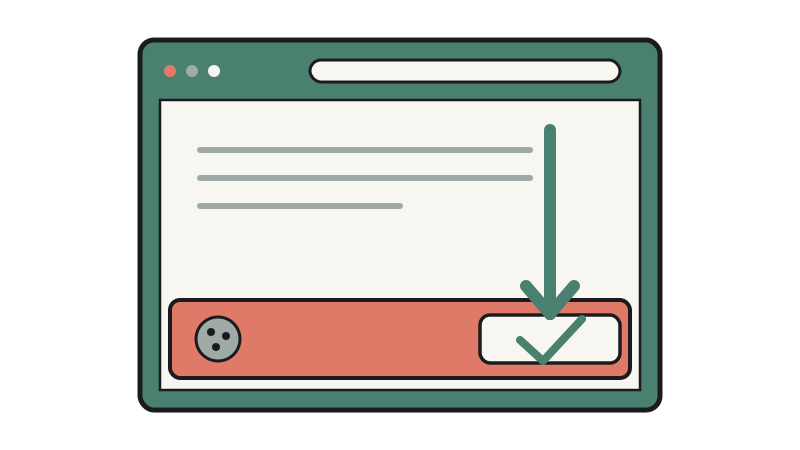
- Chrome has no switch or flag that dismisses cookie banners. Its settings only control whether sites can store data.
- To allow all cookies, open Settings, then Privacy and security, then Third-party cookies, and choose Allow third-party cookies.
- "I don't care about cookies" hides banners or accepts them for you. Consent-O-Matic submits preferences you pick.
- No extension catches every banner, so you might still have to manually handle cookie banners sometimes.
You want to automatically accept all cookies in Chrome so you can stop clicking "Accept" on every site you open. Fair enough. People ask this question so often that one Super User thread has passed 7,700 views. The usual advice sends people to Chrome's cookie settings, where they allow everything and then watch the banners appear anyway. This post explains why that happens, then covers the one setting and the two extensions that do help, and what each of them can't do. Nothing here needs code.
Why doesn't allowing cookies in Chrome stop the consent pop-ups?
Because Chrome and the website are answering two different questions. Chrome's cookie settings decide whether a site may write data files onto your machine. The banner is a piece of the site's own HTML and JavaScript, drawn on the page by the site, and Chrome has no built-in switch or flag that dismisses it.
The site shows the banner for legal reasons. Websites in the EU answer to privacy rules such as the ePrivacy Directive and the GDPR. Article 5(3) of the Directive requires consent before storing or accessing non-essential cookies, and the GDPR defines valid consent as freely given, specific, informed, and unambiguous. So they ask, however permissive your browser is.
Picture setting Chrome to allow everything, then opening a site that serves visitors in the EU. The banner is still there, because the site is putting a question to you and Chrome was never part of that conversation. That gap explains most of the "it didn't work" replies on forum threads about this.
How do you allow all cookies in Chrome's settings?
Open Settings, go to Privacy and security, then Third-party cookies, and choose Allow third-party cookies. Step by step:
- Select the three-dot menu at the top right of Chrome.
- Select Settings.
- Select Privacy and security.
- Select Third-party cookies.
- Choose Allow third-party cookies.
Google's labels in this area have shifted over time, and people regularly get lost between "Cookies and other site data" and "Third-party cookies". If your menu looks different from the list above, look for those two names. Google's own pages on turning cookies on or off and managing cookies in Chrome describe the current layout, and they're the better reference than any screenshot that might date.
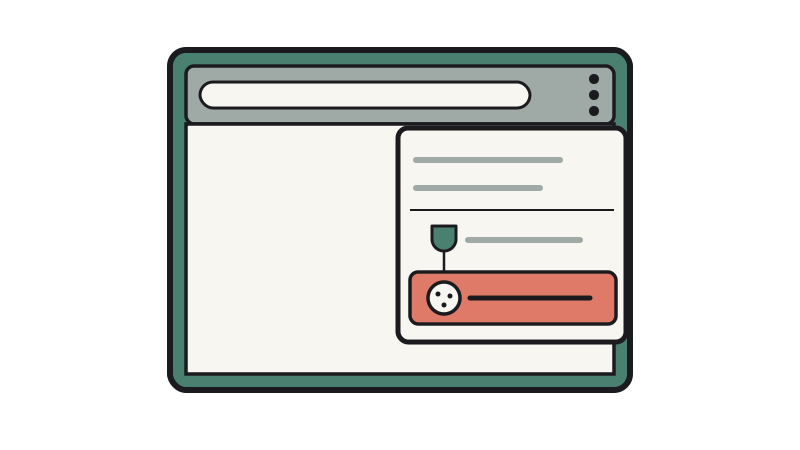
A note about what this step does: it lets sites store cookies, but it does nothing about banners, because it never touches the page the site draws. Try it if a site refuses to remember you. For banners alone, skip it.
Can a Chrome extension automatically accept cookie banners for you?
Yes. I don't care about cookies is the best-known extension for this job, and the setup is short:
- Open its Chrome Web Store page.
- Add it to Chrome and confirm when asked.
- Reload a site that used to nag you.
How it clears the banner depends on the site. It either hides the banner directly, or it accepts the cookie policy for you when the site needs acceptance to work properly.
That "either/or" matters. Hiding a banner makes the question disappear without answering it, which suits you if you only want a clean page. Accepting is a yes sent on your behalf. You don't pick which one happens on a given site, so treat it as a tool for peace and quiet, not a record of your choices.
Chrome's cookie setting controls storage, while the banner belongs to the site. An extension is the only route that reaches the banner, and "I don't care about cookies" will hide it or accept it depending on what the site requires.
What does Consent-O-Matic do differently?
It answers banners with preferences you choose, instead of a blanket yes. Consent-O-Matic is an open-source extension built by researchers at Aarhus University. It detects pop-ups from Consent Management Providers (the services many sites use to run their banners) and submits your selected preferences for you.
The research notes give a neat example: auto-reject the tracking cookies while accepting the functional ones. You get a banner dealt with and a say in what it agrees to.
To set it up, add it from its Chrome Web Store page, then set the preferences you want it to submit.
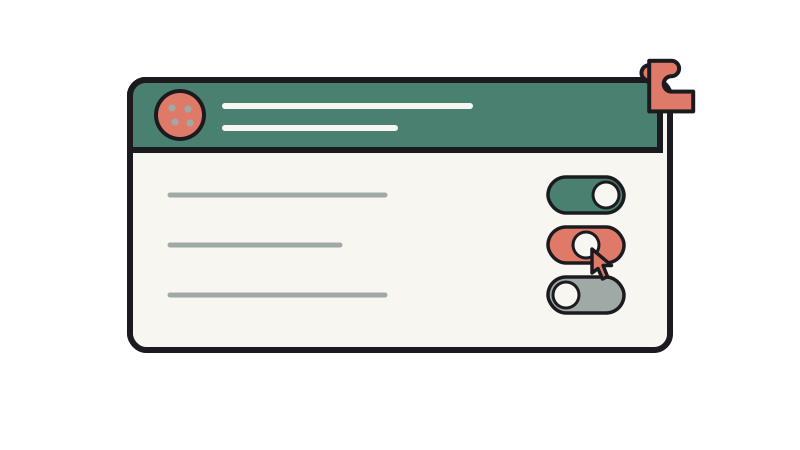
The trade-off follows from how it works. It looks for banners built on those providers, so a pop-up made some other way sits outside what it recognises. And if your goal is a literal "accept everything", "I don't care about cookies" is the closer fit. Consent-O-Matic suits you if you'd rather say yes to the useful cookies and no to the rest.
Why do some banners and cookies still get through?
Because no automation covers every banner. Some sites use non-standard overlays, closed Shadow DOM, canvas pop-ups or anti-automation wrappers. In plain terms, those are ways of building a pop-up that an extension can't read or click. When you hit one, the click is yours.
Consent-O-Matic trades a blanket yes for your own preferences, and neither extension can promise full coverage. A stubborn banner is the cost of the method, not a sign you set something up wrong.
There's a separate problem that looks similar. If cookies fail on a work or home-network site even with everything allowed, check the hostname. Under RFC 6265, a cookie set without an explicit Domain attribute gets stored as a host-only cookie, scoped to that exact host, even on single-label names like `localhost`. What browsers do reject is a cookie whose explicit Domain attribute names a public suffix or top-level domain, or doesn't match the origin host. That fix sits with whoever runs the network, not with Chrome.
Which option should you try first?
Start with an extension, because that's the only option that touches the banners. Pick by what bothers you:
- If banners annoy you and you don't care how they're dealt with, install I don't care about cookies.
- If you want a say in what gets accepted, install Consent-O-Matic.
- If a site won't keep you logged in, check the Chrome setting from earlier, and look at the hostname if it's an internal site.
Leave Chrome's setting alone otherwise. Install one extension, browse for a day, and note which sites still show a banner. Those are the ones to click by hand.
- Banners and cookie storage are separate systems, so fixing one never fixes the other.
- Only an extension reaches the banner itself. The Chrome setting is for sites that won't store a login.
- Pick I don't care about cookies for a quiet page, or Consent-O-Matic for control over what gets accepted.
- A banner that survives your extension is built in a way automation can't handle, and a cookie that fails on an internal site points to the hostname.
- chrome
- cookies
- browser extensions
- privacy