Convert HEIC to JPEG for free, no software needed
By Ninki Gen Studio · 5 min read
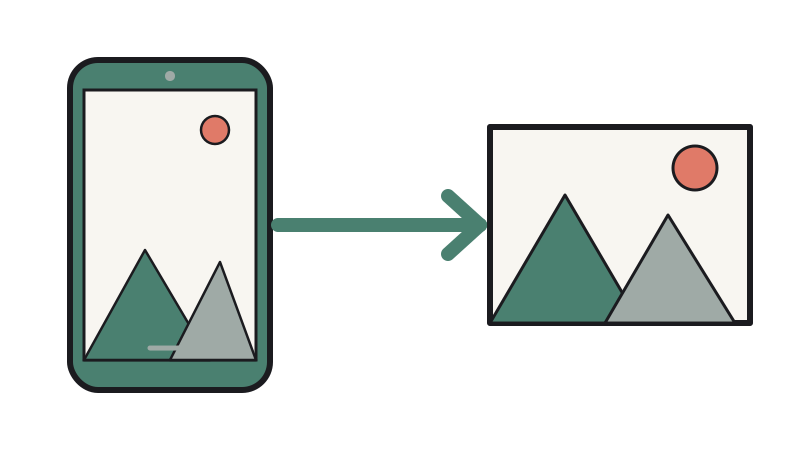
- A Mac's built-in Preview app converts HEIC to JPEG for free, one photo or a whole selection at once.
- Windows Photos and Paint convert one photo at a time, and may need the HEIF Image Extension before they can open the file.
- Free web converters need no install, but they upload your photos to a server and cap how much you can convert for free.
- Changing your iPhone's camera format only affects photos you take afterwards.
You don't need to buy or install anything to convert HEIC photos to JPEG. On a Mac, you can use Preview, which comes with macOS. On Windows, you can use Photos or Paint, one photo at a time. Or you can drop the files into a free web converter and skip your desktop entirely. Each route has a catch, and most guides leave the catches out. Below are the click-by-click steps for all three, plus the limits: how many photos each route handles at once, and what happens to your pictures when you upload them.
How do you convert HEIC to JPEG on a Mac?
Open the photo in Apple's Preview app and export it as a JPEG. You don't need to install anything. For a single photo:
- Open the HEIC image in Preview.
- Choose File > Export.
- Pick "JPEG" from the Format drop-down menu.
- Drag the quality slider if you want a smaller or sharper file.
- Click Save.
For a whole folder you need a few more clicks, and one of them is easy to miss. Plain Export only saves the photo you're looking at, so you have to select every thumbnail first. Apple's guide to showing several files in one Preview window covers the sidebar part. Here's the full sequence:
- Select all the HEIC files in Finder.
- Double-click them so they open together in Preview.
- Choose View > Thumbnails (or turn on the sidebar).
- Click inside the sidebar and press Command + A to select every thumbnail.
- Choose File > Export Selected Images.
- Click Options and pick "JPEG".
- Choose a destination folder, then click Choose.
Pick a new folder for the output if you can, so the JPEGs land in one place instead of mixing with the originals.
Can you convert HEIC to JPEG on Windows without extra software?
Yes, as long as Windows can open the file in the first place. If it can't, skip to the extension note below. Once it opens, double-click the HEIC photo and it lands in Microsoft Photos, the default viewer. If you'd rather use Paint, pick it from the "Open with" menu, or open Paint first and load the file from there. After that, you're only a few steps from a JPEG in either app.
In Photos:
- Open the HEIC file.
- Click the "..." (See more) menu in the top toolbar.
- Select "Save as".
- Choose "JPG" from the "Save as type" drop-down.
- Pick a location and save.
In Paint, open the file, then choose File > Save as > JPEG picture.
If the file won't open at all, you're probably missing two Microsoft Store add-ons: the HEIF Image Extension and the HEVC Video Extensions. Windows needs both before it can read HEIC files, and the HEVC Video Extensions cost $0.99 in the Store. Install them and the "can't view this file type" error should go away.
One limit catches people out: neither Photos nor Paint can convert a batch. You have to repeat the Save as steps for every single picture. It's the price you pay for staying offline without installing anything extra.
On a Mac, one extra step (Export Selected Images) turns Preview into a free batch converter. On Windows, you may need the HEIF Image Extension first, and you convert every photo one at a time.
Are free online HEIC to JPEG converters safe?
They work, and you don't install anything, but you pay for the convenience by uploading your photos. Tools such as CloudConvert and FreeConvert all work the same way:
- Open the converter's page.
- Drop your HEIC files onto it.
- Download the JPEGs when they're ready.
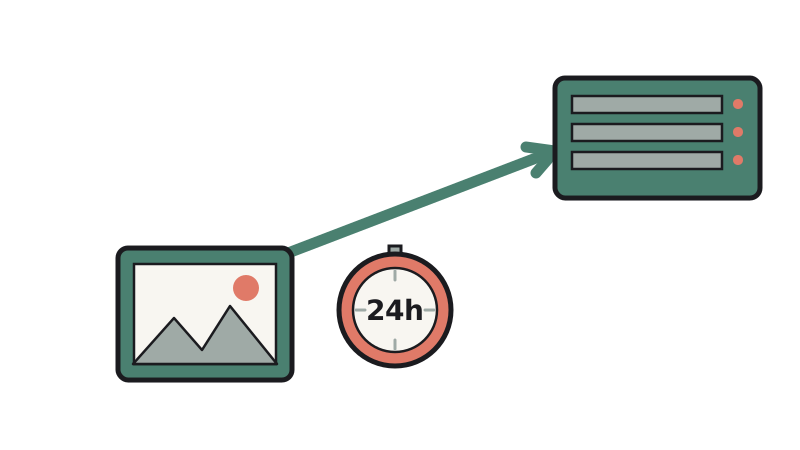
That middle step sends your photos to a server you don't control, and services generally keep your files for a while after converting them. FreeConvert says it deletes uploads automatically after 8 hours. That's a reasonable policy, but your picture still sits on someone else's machine for most of a working day. If the photos are private or sensitive, use the Mac or Windows route instead.
Free tiers also have limits. CloudConvert's pricing page lists 10 free conversion credits a day, and a standard single-image conversion costs 1 credit, so you get about ten photos a day before it asks you to pay. Check the page before you start, because allowances like this change.
Which way to convert HEIC to JPEG should you pick?
Use the offline route your computer already has, and keep the browser tool for small jobs where privacy doesn't matter. Two things decide it: how many photos you have, and how private they are.
Say you have a folder of 50 holiday photos. On a Mac, you export them all in one go and you're done in a minute. On Windows, you save them one by one, 50 times over, or you feed a free web converter ten a day for five days. If they're family pictures you'd rather not upload, the 50 saves are the honest answer. If you just need three photos converted in a hurry, the browser is faster than hunting for the right menu.
Setup time counts too. A Mac is ready to go. On Windows, you might need to download the extension first. A web converter only needs a link, but it's the only route that sends your files anywhere.
Keep private photos on Preview, Photos or Paint. Use a browser converter for a handful of photos you wouldn't mind sitting on a stranger's server for a few hours. If you have a big batch, a Mac is the only painless option.
How do you stop your iPhone from taking HEIC photos?
Switch your iPhone to JPEG and the problem stops growing. Apple's camera format settings make it three taps:
- Open Settings > Camera.
- Tap Formats.
- Switch from "High Efficiency" (HEIF/HEVC) to "Most Compatible" (JPEG).
Here's the catch. The change only affects photos you take from now on. Every HEIC photo already in your camera roll stays as it is, so you still need the Mac or Windows steps above for the old ones.
- Keep anything private on an offline route, because every web converter uploads your photos.
- Count your photos before you choose: a Mac copes with a folder, while Windows and free web tiers suit a handful.
- If Windows won't open a HEIC file, install the HEIF Image Extension before assuming the file is broken.
- Fix the source and the backlog separately: the iPhone setting covers new photos only, and old ones still need converting.
- HEIC
- JPEG
- iPhone
- Windows